


Introduction
If your computer has become slow, takes a long time to start, or struggles to run multiple applications, you are not alone. Many Windows users experience performance issues over time because of unnecessary startup programs, temporary files, outdated software, and inefficient system settings. Fortunately, you do not always need to purchase a new computer to restore speed and reliability. By following the right Windows optimization tips, you can significantly improve your PC’s performance while extending its lifespan.
Windows is designed to handle a wide variety of tasks, but regular maintenance is essential for keeping it running smoothly. Whether you use your computer for work, gaming, studying, or entertainment, proper optimization can reduce loading times, improve responsiveness, and minimize system crashes. This guide covers practical and effective Windows optimization tips that anyone can follow without advanced technical knowledge.
Why Windows Performance Slows Down
Windows computers naturally slow down over time due to accumulated software, temporary files, outdated drivers, fragmented storage on older hard drives, and background applications consuming valuable system resources. Installing numerous programs without removing unused ones also contributes to slower performance.
Understanding these causes helps you identify which optimization methods will have the greatest impact on your computer.
Remove Unnecessary Startup Programs
One of the most effective Windows optimization tips is reducing the number of applications that launch during startup.
Many programs automatically start with Windows, increasing boot time and consuming memory before you even begin working. Open Task Manager, navigate to the Startup tab, and disable applications that you do not need immediately after turning on your PC.
Only leave essential programs enabled, such as security software or hardware utilities.
Benefits include:
- Faster boot times
- Lower memory usage
- Improved overall responsiveness
Delete Temporary Files Regularly
Windows continuously creates temporary files that eventually consume valuable storage space.
Use the built-in Disk Cleanup utility or Storage Sense to remove:
- Temporary files
- System cache
- Windows Update leftovers
- Recycle Bin contents
- Temporary internet files
Cleaning these files regularly frees storage and helps Windows operate more efficiently.
Keep Windows Updated
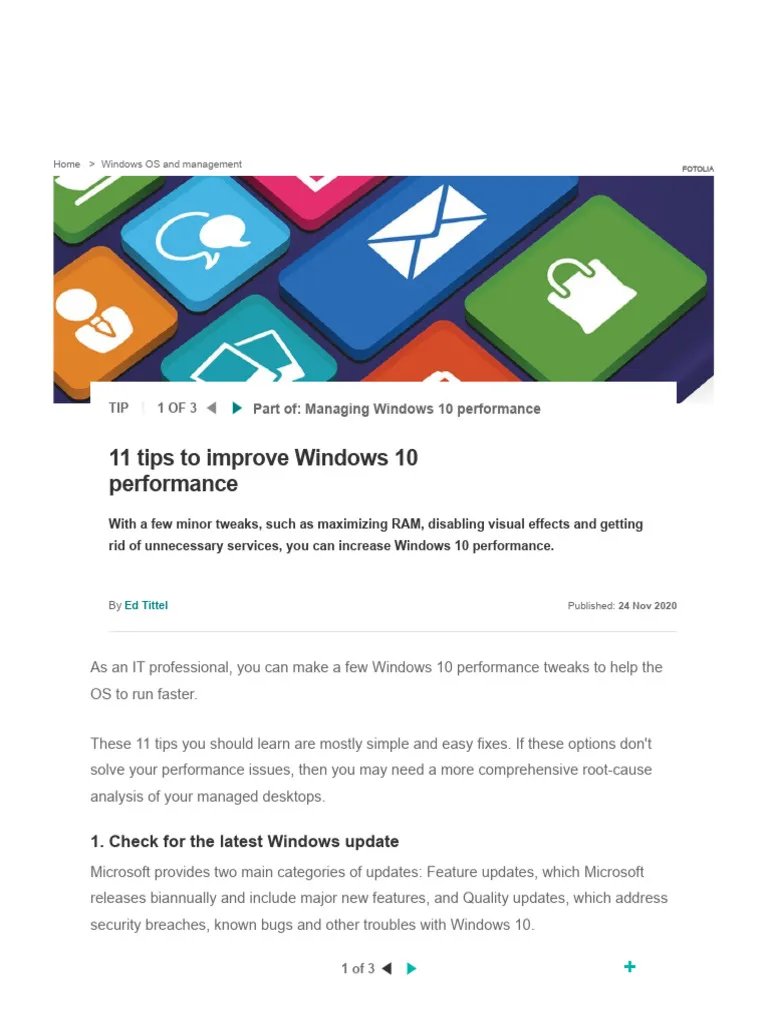
Regular updates improve security, stability, compatibility, and performance.
Microsoft frequently releases updates that fix bugs, improve system efficiency, and optimize resource management. Delaying updates can cause compatibility issues and leave your system vulnerable to security threats.
Always install major Windows updates when available.
Update Device Drivers
Drivers allow Windows to communicate properly with your hardware.
Outdated graphics, audio, network, or chipset drivers may reduce performance or create system instability.
Check for driver updates using:
- Windows Update
- Device Manager
- Official manufacturer websites
Updated drivers often improve gaming performance and hardware compatibility.
Uninstall Unused Software
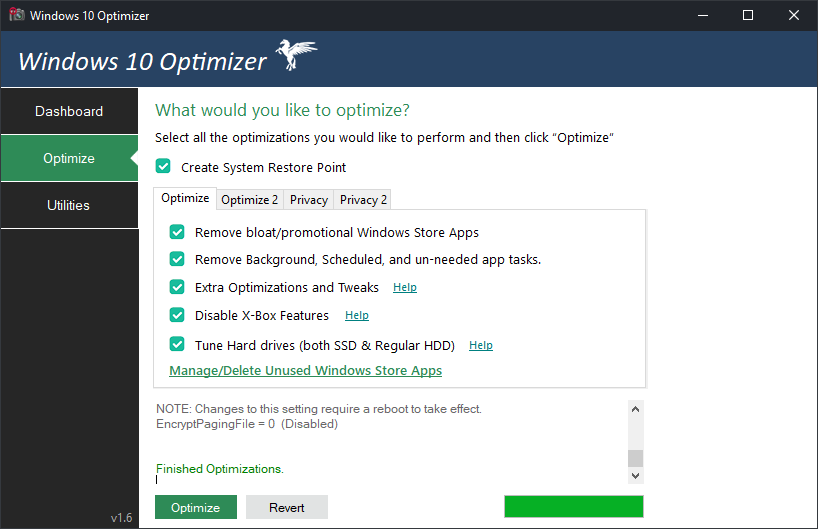
Many computers contain programs that are rarely or never used.
Unused applications occupy storage space, create unnecessary background processes, and sometimes install services that continue running after startup.
Review your installed programs regularly and remove software you no longer need.
This simple step often provides noticeable performance improvements.
Optimize Storage Space
Running out of storage significantly impacts Windows performance.
Aim to keep at least 20% of your storage drive free.
Ways to free storage include:
- Delete duplicate files
- Remove old downloads
- Empty Recycle Bin
- Move large files to external drives
- Use cloud storage
Adequate free space allows Windows to manage virtual memory more effectively.
Upgrade to an SSD
If your computer still uses a traditional hard disk drive (HDD), upgrading to a Solid State Drive (SSD) provides one of the biggest performance improvements possible.
Benefits include:
- Faster startup
- Quicker application launches
- Improved file transfers
- Better multitasking
- Reduced loading times
Even older computers can feel dramatically faster after installing an SSD.
Increase RAM if Possible
Insufficient memory often causes slow performance while multitasking.
Adding more RAM helps Windows handle:
- Multiple browser tabs
- Office applications
- Video editing
- Gaming
- Virtual machines
Most modern users benefit from at least 16GB of RAM, while casual users can comfortably use 8GB.
Disable Visual Effects
Windows includes various animations and transparency effects that consume system resources.
You can improve performance by selecting Adjust for Best Performance in Advanced System Settings.
This optimization is especially useful for older laptops and entry-level computers.
Scan for Malware
Viruses and malware often run silently in the background while consuming CPU, memory, and storage resources.
Use Windows Security or another trusted antivirus program to perform regular system scans.
Keeping your computer malware-free is one of the most important Windows optimization tips for maintaining reliable performance.
Manage Background Apps
Many applications continue running even after closing their main window.
These background processes consume RAM and processor resources.
Review which apps are allowed to run in the background and disable unnecessary ones through Windows settings.
This can noticeably improve battery life on laptops while increasing overall performance.
Use Power Settings Wisely
Windows offers different power plans.
Desktop users should consider using High Performance when maximum speed is desired.
Laptop users may switch between Balanced and Best Performance depending on battery usage and workload.
Selecting the appropriate power mode helps optimize system responsiveness.
Defragment Traditional Hard Drives
If your computer uses an HDD rather than an SSD, regular disk defragmentation improves file organization.
Windows includes a built-in Optimize Drives utility that performs this automatically.
Remember:
- Defragment HDDs
- Do not manually defragment SSDs
Restart Your Computer Regularly
Many users leave their computers running for days or weeks.
A simple restart clears temporary memory, closes unnecessary background processes, installs pending updates, and refreshes system resources.
Restarting your PC regularly is one of the easiest optimization habits.
Clean Your Computer Physically
Dust buildup increases temperatures, forcing components to throttle performance.
Regular cleaning helps maintain:
- Lower CPU temperatures
- Better airflow
- Reduced fan noise
- Longer hardware lifespan
Use compressed air carefully to remove dust from fans and vents.
Keep Your Desktop Organized
Hundreds of desktop icons and files can slow loading times.
Create folders to organize documents and move large files into appropriate directories.
A cleaner desktop contributes to a smoother Windows experience.
Monitor Resource Usage
Task Manager provides valuable insight into which applications consume:
- CPU
- Memory
- Disk
- Network
If one application constantly uses excessive resources, consider updating, reinstalling, or replacing it.
Monitoring system performance helps identify hidden performance problems.
Use Trusted Optimization Tools Carefully
Many third-party optimization utilities promise dramatic speed improvements.
Only use reputable software and avoid programs that claim to fix hundreds of problems instantly.
Windows already includes many powerful maintenance tools, making additional software unnecessary for most users.
Create Regular Backups
Optimization also means protecting your data.
Use File History, OneDrive, or external drives to create regular backups.
Backups ensure important files remain safe even if hardware fails or Windows needs to be reinstalled.
Best Maintenance Schedule
Following a simple routine keeps your computer performing well.
Weekly
- Empty Recycle Bin
- Restart PC
- Check storage
Monthly
- Remove temporary files
- Review startup apps
- Scan for malware
- Install updates
Every Six Months
- Clean internal dust
- Review installed software
- Update drivers
- Check storage health
Consistent maintenance prevents many common performance issues.
Conclusion
Maintaining a fast and responsive computer does not require expensive upgrades or advanced technical knowledge. By following these Windows optimization tips, you can improve startup speed, reduce lag, increase system stability, and extend the life of your hardware. Regular updates, removing unnecessary software, managing startup programs, cleaning temporary files, and upgrading components like SSDs or RAM when needed all contribute to a noticeably better computing experience.
The best approach is consistency. Performing small maintenance tasks every few weeks prevents problems from accumulating and keeps your Windows PC running smoothly for years. Whether you are a student, professional, gamer, or casual user, applying these Windows optimization tips will help you get the most from your computer.
Frequently Asked Questions (FAQs)
1. How often should I optimize my Windows PC?
Perform basic maintenance every month and deeper optimization every six months.
2. Will Windows optimization make an old computer faster?
Yes. Cleaning unnecessary files, disabling startup apps, and upgrading to an SSD can significantly improve older computers.
3. Is it safe to disable startup programs?
Yes, as long as you only disable non-essential applications and keep security software enabled.
4. Does adding more RAM improve performance?
Yes. More RAM improves multitasking and helps demanding applications run more smoothly.
5. What is the most effective Windows optimization tip?
Upgrading from a traditional HDD to an SSD typically delivers the biggest performance improvement, followed by reducing startup programs and keeping Windows updated.